 The Chromatograph Properties dialog box displays properties for existing FMS Chromatograph Nodes. Use this feature to view and edit Chromatograph Node properties. This dialog box corresponds to all of the following.
The Chromatograph Properties dialog box displays properties for existing FMS Chromatograph Nodes. Use this feature to view and edit Chromatograph Node properties. This dialog box corresponds to all of the following.
The following subsections list and describe the fields found on the Chromatograph Properties pages.
When any edits are made to Node properties, access the Save FMS Record dialog box to save a record of the change.
See Creating Chromatograph Nodes for more information about creating new Nodes in your system.
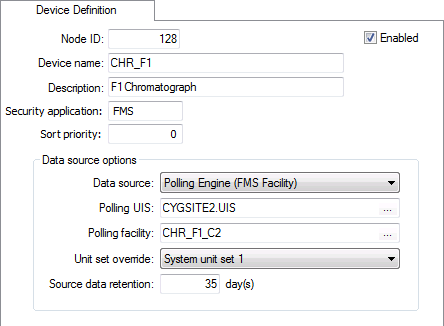
| Property | Description |
|---|---|
|
Node ID |
The system-assigned Node ID for the Chromatograph Node. When creating new Chromatograph Nodes, this will indicate NEW. |
|
Enabled |
The Enabled check box indicates whether the chromatograph is enabled or not. An unchecked box does not mean the chromatograph is deleted; all chromatograph settings are saved until you choose to enable it. Default value is Enabled. |
|
Device name |
Type in the name for the Chromatograph Node. Valid characters (maximum of 20) are as follows. A-Z, a-z, 0-9, . (period), #, $, &, (, ), +, -, \, /, :, <, >, =, @, [, ], ^, {, }, _ (underscore), !, ~ (tilde). Spaces are acceptable, when they are not leading or trailing. This parameter is required. |
|
Description |
Type in a free-form Description for the chromatograph. This parameter is optional. |
|
Security application |
Enter the security application used to validate users of the Node. Use this setting to control user access, for example, to only give certain users access to particular Chromatograph Nodes. See FMS Security for more information. This parameter is optional. |
|
Sort priority |
Type in the Sort priority number to assign to the Chromatograph Node. The priority number assigned places it within a manually sortable list. Higher numbers place a Node higher up on a list. Default value is 0. This parameter is optional. |
| Data source options | |
|
Data source |
Select the data source for the chromatograph from the drop-down menu. Options are as follows.
|
|
Polling UIS |
If Polling Engine is your selected Data Source, click … to select the polling UIS for the chromatograph. |
|
Polling facility |
If Polling Engine is your selected Data Source, click … to select the facility polling for the chromatograph. Note: The list provided contains all linked facilities that belong to the FMS Configuration or FMS Legacy Configuration data group corresponding to your data source selection. |
|
Note: The Unit set override parameter is optional. It is provided to give you the ability to override units in cases where GMR data coming into FMS (via the FMS Toolbox) may contain values in units other than the assumed GMR units. In such a case, use this parameter to define the unit set to use instead, and the FMS system will apply the specified unit set to the incoming GMR data See GMR Data Items Units for more information. If used, select a unit set for the system to apply to GMR data, from the options in the drop-down menu. Options in the drop-down menu are populated by the enabled read-only unit sets configured in your system. You may have to create the applicable unit set first. See Configuring Unit Set Definitions for more information. |
|
|
Source data retention |
Enter the maximum time, in number of days, that source data is retained on your flow computer. Retention on most flow computers is 35 days. Default value is 35 days. |

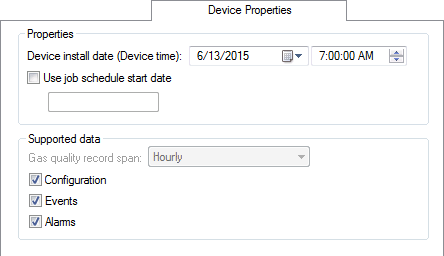
| Property | Description |
|---|---|
| Properties | |
|
Device install date (Device time) |
Select the date and time of the installation of the chromatograph using the date and time selectors. When no user-entered value is provided, the default install date value is 36 days prior to Node creation, at 12:00:00 AM. Example The Install Date is the date and time the chromatograph began collecting data. Notes: The Request Missing Data or Request New Data commands will not request data prior to the device install date. Edits to this property can only be applied for the entire span of the Node. An error message will appear if you try to edit this value for a partial span. |
|
Use job schedule start date |
Note: This parameter defines a date used by the Schedule Jobs command for CygNet Dispatch. For more information about the CygNet Dispatch product, contact your Account Manager or CygNet Sales. When using CygNet Dispatch, optionally set this value to define the first possible start date that can be used for job occurrences associated with this Node, when automatically scheduling jobs via the Schedule Jobs command. If used, click the check box to access the date selector, and specify the earliest date from which CygNet Dispatch jobs for this Node can be scheduled. When no user-entered value is provided, the default value is the Device install date. See Schedule Jobs for more information. |
| Supported data
Note: Each of the following properties is read-only once the corresponding data type has been collected for the Node. The properties can only be edited if the device has not yet received the corresponding data, since Node properties must be consistent across their time continuum. Trying to edit a Supported data property, for a device which has already received that type of data, will produce a service error. |
|
|
Gas quality record span |
Click to select the record span at Node creation. If the Data Source is a polling engine, this requires a properly configured device in the DDS with at least one corresponding data group: FMS Legacy History or FMS History (periodic quality). Record span options are as follows.
This property is required. |
|
Configuration |
If the device supports configuration data, click to select the check box. If the Data source is a polling engine, this requires a properly configured device in the DDS with at least one corresponding data group: FMS Legacy Configuration or FMS Configuration. This property is optional. |
|
Events |
If the device supports event data, click to select the check box. If the Data source is a polling engine, this requires a properly configured device in the DDS with at least one corresponding data group: FMS Legacy Events or FMS Events. This property is optional. |
|
Alarms |
If the device supports alarm data, click to select the check box. If the Data source is a polling engine, this requires a properly configured device in the DDS with at least one corresponding data group: FMS Legacy Configuration (alarms) or FMS Alarms. This property is optional. |
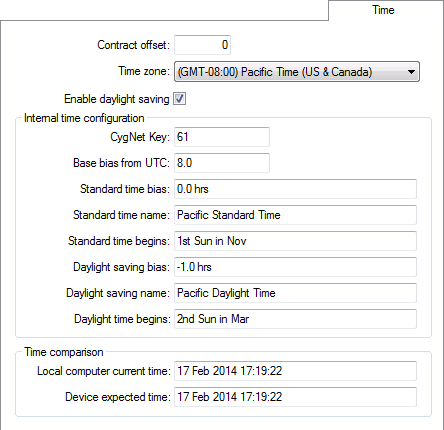
See Date and Time and CygNetTimeZones.xml File for more information about these properties.
| Property | Description |
|---|---|
|
Contract offset |
Type the number (in hours) of the contract hour offset. This number is synonymous with the Contract time. It is an offset (in hours) from the Device time, describing the hour at which the contract day begins. |
|
Time zone |
Click to select the desired time zone from the drop-down menu. Note: Edits to this property can only be applied for the entire span of the Node. An error message will appear if you try to edit this value for a partial span. |
|
Enable daylight saving |
Click to enable an adjustment for daylight saving time. Notes:
|
| Internal time configuration | |
|
CygNet Key |
An internal CygNet identifier Each time zone is assigned a unique numerical key in the CygNetTimeZones.xml file, located in the CygNet\Services\ARS folder on your host server. This property is read-only. Note: This value requires a properly installed CygNetTimeZones.xml file. See CygNetTimeZones.xml File for more information. |
|
Base bias from UTC |
The offset in hours between the device's expected time and Coordinated Universal Time (UTC) (also known as Greenwich Mean Time or GMT) This property is read-only. |
|
Standard time bias |
The offset in hours from the base bias to account for standard time in the selected time zone This property is read-only. |
|
Standard time name |
The complete standard time zone name, for example Eastern Standard Time This property is read-only. |
|
Standard time begins |
The date that standard time begins, for example 1st Sun in Nov. This property is read-only. |
|
Daylight saving bias |
The offset in hours between standard time and daylight saving time This property is read-only. |
|
Daylight saving name |
The complete daylight saving time zone name. For example, Pacific Daylight Time This property is read-only. |
|
Daylight time begins |
The date that daylight saving time begins, for example 2nd Sunday in March This property is read-only. |
| Time comparison | |
|
Local computer current time |
The time of the client computer Do not alter the client computer's time; it may cause undesirable changes in your CygNet system. This property is read-only. |
|
Device expected time |
The time expected for the remote device This property is read-only. |
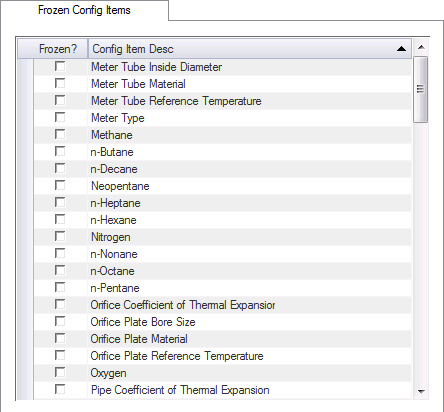
| Property | Description |
|---|---|
|
Frozen? |
Each check box represents a configuration item. If the check box is selected, its value is "frozen" so new configuration records won’t update the system. The raw data is still stored, however. Click the check box adjacent to any configuration item(s) you choose to select/clear whether or not to "freeze" its value. |
|
Config Item Desc |
Lists the descriptions of the configuration items for the selected meter. |
The chromatograph's group membership is displayed as of Now, regardless of Point in Time settings.
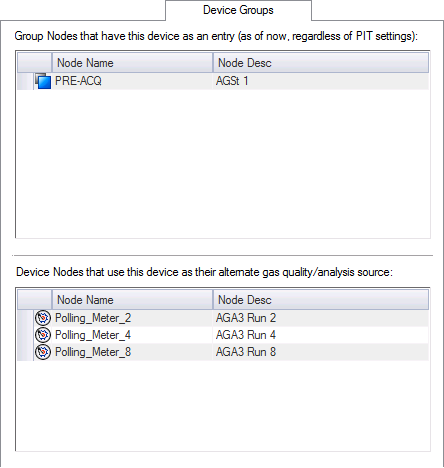
| Property | Description |
|---|---|
| Groups | |
|
[Icon] |
The type of each group Node of which this chromatograph is a member. |
|
Node Name |
The name of each group Node of which this chromatograph is a member. |
|
Node Desc |
The description (if used) of each group Node of which this chromatograph is a member. |
| Devices | |
|
[Icon] |
The type of each device Node that uses this chromatograph as its alternate gas quality/analysis source. |
|
Node Name |
The name of each device Node that uses this chromatograph as its alternate gas quality/analysis source. |
|
Node Desc |
The description (if used) of each device Node that uses this chromatograph as its alternate gas quality/analysis source. |
The chromatograph's latest Node state information is displayed by device data type.
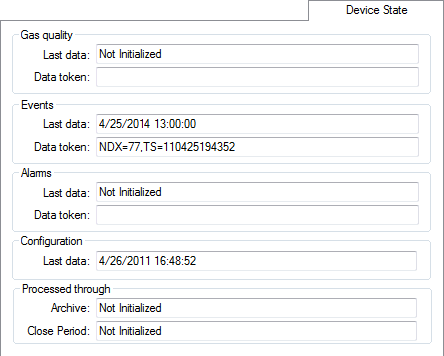
| Property | Description |
|---|---|
|
Gas quality |
Last data: Date of last Gas Quality data received. Data token: Displays the last relevant data token received. |
|
Events |
Last data: Date of last Events data received. Data token: Displays the last relevant data token received. |
|
Alarms |
Last data: Date of last Alarms data received. Data token: Displays the last relevant data token received. |
|
Configuration |
Last data: Date of last configuration data received. |
|
Processed through |
Archive: Date of last data received. Close Period: Displays the last Close Period data received. |
Each page of the Chromatograph Properties dialog box contains a historization navigator. Use the historization navigator to access sequential historized records for the same Node, where applicable.

The following fields are displayed in the historization navigator.
| Field | Description |
|---|---|
|
<< |
Click << to navigate to the previous historized record, if applicable. |
|
[Begin date] |
Displays the effective begin date, in Contract time (C), of the historized record currently selected. |
|
[End date] |
Displays the effective end date, in Comntract time (C), of the historized record currently selected. |
|
>> |
Click >> to navigate to the next historized record, if applicable. |
|
Record details |
Use the << and >> navigation buttons to select a historized record date span, in Contract time (C), for which you want to view record details. Next, click Record details to view details of the record such as who made the change, the date and time it was made, and optionally the audit category and/or any comments entered regarding the change. See Viewing Record Details for more information. |
|
Audit history |
Click Audit history to view detailed history of audit trail value changes for the Node in its entirety. See Viewing Audit History for more information. |
When editing any Node properties, you'll be asked to save your changes via the Save FMS Record dialog box. Configure the date and audit information requested to historize the changes in your system.
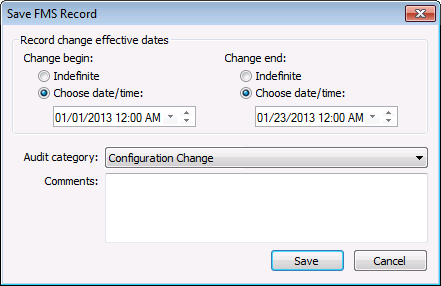
| Property | Description |
|---|---|
|
Change begin |
Set the effective date and time for the record change to begin. Options are as follows.
|
|
Change end |
Set the effective date and time for the record change to end. Options are as follows.
|
|
Audit category |
Select an appropriate Audit category from the drop-down menu. The audit category type for this kind of edit is Configuration Change. Audit categories are configured on the Admin menu. See Configuring Audit Categories for more information. |
|
Comments |
Type Comments regarding creation or modification of the rule or Node in the text box. Although comments are optional, they become part of the record and can be helpful when auditing or reviewing records. |
|
|
|

